
Applying for a government job online looks simple until you actually open the form.
The portal asks for your name, date of birth, category, qualification, passing date, experience, photo, signature, preferences and fee details. Every field seems small. But later, during document verification, the recruiting authority can ask you to prove the claims you entered.
That is why the safest way to apply is not:
Open form → fill quickly → upload → pay → submit.
The safer method is:
Notification → eligibility proof → application worksheet → correct portal → correct post → correct details → preview audit → final submit → proof of submission.
This guide is built for that process.
It does not assume that SSC, UPSC, Railway, State PSCs and every other recruiter use the same portal rules. They do not. Current systems differ in account creation, registration, live-photo requirements, correction windows, payment handling and application status.
The one rule that survives across recruiters is:
The current official notification and current official application portal control your application—not an old screenshot, previous-year YouTube video or another exam’s checklist.
QUICK ANSWER
To apply for a government job online safely, first read the official recruitment notification and confirm that you meet the post’s age, qualification, category and other eligibility conditions. Then create or use the required account/registration on the recruiting authority’s official portal, fill every field from reliable records, select the exact advertisement/post, follow the current photo/signature/document rules, verify fee or exemption, and run a complete preview audit before Final Submit. After submission, save the final application, registration/application number and payment proof and confirm that the portal shows the application as successfully submitted.
KEY TAKEAWAYS
- Start from the official notification, not from the Apply button.
- Registration or a reusable profile is not automatically a submitted job application.
- UPSC’s current portal uses its newer account/Universal Registration workflow for future examinations; old OTR material should not be treated as the current universal process.
- SSC, Railway, UPSC and State recruiters can all use different application workflows.
- Never reuse another recruitment’s photo size, fee, certificate period, correction rule or document-upload requirement.
- Select the exact advertisement, post code, zone/region and preferences carefully.
- Enter name, DOB, category, qualification and passing date only from records that can later support the claim.
- A payment debit does not by itself prove that the application is complete.
- Use the portal’s final preview and application-status page before assuming submission succeeded.
- Keep your registered email and mobile active throughout the recruitment.
- Correction after submission may be restricted to a notified correction window.
- Duplicate registration or multiple applications can cause rejection in recruitments that prohibit them.
- Save the submitted form and payment proof for future DV, admit card and grievance needs.
1. Start With the Official Vacancy, Not the Application Form
A common mistake is seeing a recruitment headline and immediately clicking “Apply.”
Instead, first identify:
- recruiting organization;
- official advertisement/notification number;
- post name;
- post code;
- vacancies;
- opening date;
- last date;
- official application portal.
Then open the detailed official notification.
Why?
Because the form does not always explain every eligibility condition. Important rules may sit in:
- eligibility tables;
- footnotes;
- annexures;
- category-certificate instructions;
- photo/signature specifications;
- post preference rules;
- correction-window rules;
- medical standards;
- document-verification clauses.
For a deeper method, read the How to Read a Government Job Notification guide.
CANDIDATE NOTE
Before applying, save the notification PDF locally. Name it with the recruiter and advertisement number. If the portal later changes or the recruitment page becomes hard to find, you still have the rules you applied under.
2. How Do You Know the Apply Link Is Official?
Government-job fraud often starts with a page that looks official.
Use this verification sequence:
- open the recruiting authority’s official website;
- locate the recruitment notice there;
- open the Apply link from that notice or official recruitment page;
- confirm the domain before entering personal or payment information.
Do not trust a link merely because it appears in:
- WhatsApp;
- Telegram;
- social media;
- a search advertisement;
- an unofficial job portal;
- a copied PDF.
National Career Service itself warns that fraudulent websites, employers and individuals can falsely claim association with NCS or the Ministry of Labour & Employment. NCS also states that its own services are free of cost.
WARNING
Regal Career can help you understand and locate a recruitment, but the actual application should be completed through the official recruiting authority/application portal named in the official notification.
3. Confirm Eligibility Before Creating the Form
Do not use the application form to “see if the portal accepts you.”
The portal accepting data does not necessarily prove that you are legally eligible.
Confirm:
- age;
- age on the correct crucial date;
- qualification;
- subject/discipline;
- result/passing date;
- experience;
- category;
- OBC-NCL/EWS status where applicable;
- PwBD/ESM claim;
- nationality/domicile where relevant;
- physical/medical requirements for the post;
- any mandatory registration/licence.
Use the Government Job Eligibility guide, Age Limit & Relaxation guide, Qualification Requirements guide and Reservation Rules guide when needed.
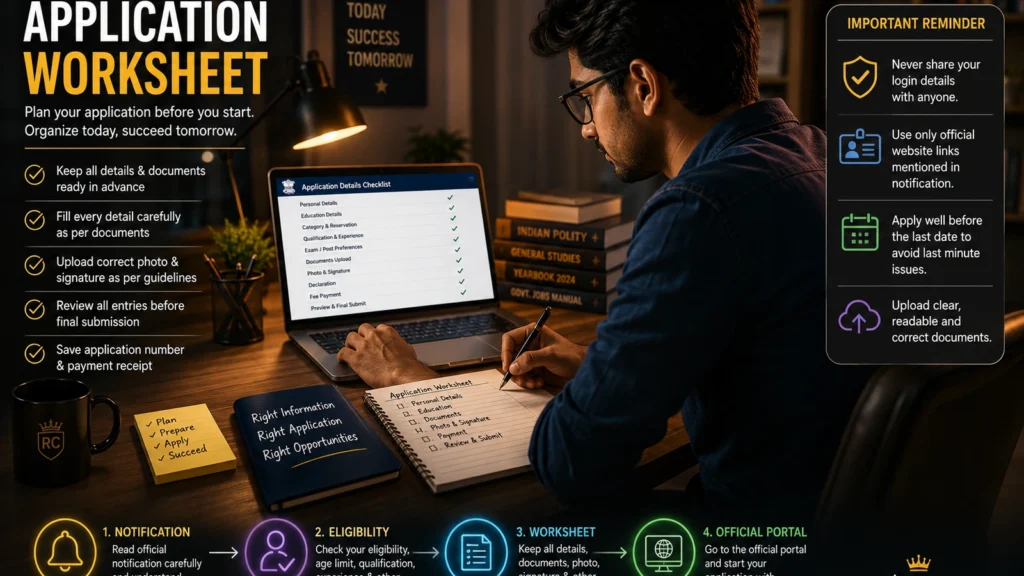
4. Build a One-Page Application Worksheet Before You Log In
This is one of the best ways to prevent form mistakes.
Prepare a simple worksheet containing:
Recruitment details
- recruiter;
- advertisement number;
- post;
- post code;
- region/zone;
- category of vacancy if relevant;
- closing date.
Personal details
- name;
- date of birth;
- father’s/mother’s name;
- gender;
- mobile;
- email;
- address.
Eligibility details
- category;
- age relaxation claimed;
- qualification;
- institution;
- passing date;
- marks/CGPA;
- experience;
- PwBD/ESM status.
Application choices
- post preferences;
- region/zone;
- exam centre;
- language/medium where applicable.
Upload/payment items
- photograph/live-photo requirement;
- signature;
- documents;
- fee amount/exemption;
- payment method.
This creates a controlled source before you start clicking through multiple portal screens.
5. Registration, Profile and Application Are Different Things
This is one of the most important concepts in online government recruitment.
A recruiter can use several layers:
Account creation → reusable registration/profile → examination/application form → final submission
Completing the first layer does not necessarily complete the last.
Current UPSC example
UPSC’s current online system for future examinations uses its newer `upsconline.nic.in` portal. Its current instructions include:
- account creation;
- Universal Registration;
- separate application for the examination.
That means you should not treat an older “UPSC OTR completed” tutorial as proof that a current application has been submitted.
Railway example
RRB CEN 01/2026 says candidates who have already created an account for relevant earlier CENs can use the same account credentials for the current CEN—but they still have to apply for that CEN.
Candidate rule
> Account exists ≠ application exists. Application started ≠ application submitted.
6. Keep Your Own Mobile Number and Email Active
Recruiters can use your registered mobile/email for:
- OTP;
- account activation;
- application confirmation;
- correction notices;
- exam updates;
- call-letter information.
RRB’s current 2026 instructions specifically require an active personal mobile number and valid email for account creation and state that these should remain active during the recruitment process.
Avoid using
- a cyber-café owner’s email;
- someone else’s mobile;
- temporary email;
- a number you plan to abandon soon.
IMPORTANT
Your application account is part of your recruitment identity. Use contact details you control.
7. Enter Your Name and Date of Birth From the Correct Record
Do not type your name from memory if your official records use a different format.
Check:
- Class 10/matriculation certificate where the recruitment uses it as the foundational record;
- the exact instruction in the current notification;
- your category and qualification documents for consistency.
Common differences include:
- initials vs full name;
- surname placement;
- father/mother-name spelling;
- different DOB;
- married-name changes.
The fact that a portal accepts a spelling does not mean the DV officer must later accept a mismatch.
8. Select the Exact Advertisement and Post Code
Many recruitments contain multiple posts.
Two posts can have:
- different qualifications;
- different age limits;
- different medical standards;
- different departments;
- different regions;
- different category vacancies.
So “I applied to the recruitment” is not enough.
Verify:
- advertisement/CEN number;
- post name;
- post code;
- level/grade;
- region/zone;
- department;
- category of vacancy.
CANDIDATE NOTE
Take a screenshot or save a note of the exact post code you intend to apply for before opening the portal. This is especially useful where dozens of posts appear in one recruitment.
9. Category Selection: Do Not Choose by Convenience
Category is not simply a dropdown that reduces the fee or cut-off.
If you select:
- SC;
- ST;
- OBC-NCL;
- EWS;
- PwBD;
- Ex-Servicemen;
- another reserved/relaxation category,
you should understand the certificate and eligibility conditions attached to that claim.
For example, Central OBC-NCL generally requires the appropriate Central-list/NCL status under the recruitment rules, not merely a State OBC certificate.
Use the Government Job Reservation Rules & Category Certificates guide.
10. Age Relaxation: Claim Only What Actually Applies
Do not select age relaxation simply because the portal offers it.
Check:
- category;
- recruitment rule;
- crucial date;
- amount of relaxation;
- required certificate/status.
A wrong relaxation claim can become an eligibility issue later.
11. Qualification: Enter the Exact Qualification That Makes You Eligible
If the post requires:
> “Bachelor’s Degree in X”
do not casually select a broader “Graduate” option if the form requires exact discipline details.
Check:
- qualification name;
- branch/subject;
- university/board;
- result date;
- marks/CGPA;
- recognition;
- equivalence.
Passing date matters
A degree certificate may be printed months after your result.
The recruitment may care about the date on which you actually acquired the qualification.
If eligibility depends on equivalence, preserve the official equivalence evidence.
12. Experience: Dates and Nature of Work Matter
If a post requires experience, enter it carefully.
Verify:
- employer;
- designation;
- start date;
- end date;
- current status;
- total period;
- full-time/part-time if relevant;
- post-qualification requirement;
- duties/domain.
Do not round experience upward to reach a required threshold.
13. Post, Zone and Department Preferences
Preferences can affect your actual appointment opportunity.
Depending on the recruiter, you may have to rank:
- posts;
- zones;
- cadres;
- departments;
- offices;
- locations.
Read whether preferences are:
- mandatory;
- final after submission;
- revisable in a correction window;
- considered subject to merit/medical/category.
Railway application instructions, for example, can display eligible posts and require candidates to set preferences.
14. Exam Centre Preference
Choose carefully.
Do not assume:
- the first choice is guaranteed;
- centre can always be changed later;
- every city remains available until closing date.
Follow the notification.
15. Photograph Rules: Use the Current Recruitment Instructions
One of the worst habits in job-application content is publishing one permanent photo specification.
Photo rules change.
Current SSC recruitment instructions are a strong example: the Commission uses live photograph capture in the application workflow for relevant current recruitments and warns candidates not to capture a photograph of an old printed photograph.
Another recruiter may require:
- uploaded JPG/JPEG;
- live webcam/mobile capture;
- specific background;
- date/name slate;
- no date/name slate;
- specified dimensions/file size.
Rule
> Never reuse last year’s photo instructions.
16. Signature Rules
The same applies to signatures.
Check:
- background;
- ink colour;
- dimensions;
- file type;
- file size;
- whether full signature is required;
- whether capital-letter name is accepted.
Preview the uploaded signature before final submission.
17. Should You Upload Certificates With the Application?
Only if the current application asks for them.
Some portals collect:
- qualification certificate;
- category certificate;
- PwBD certificate;
- ID proof;
- experience certificate.
Others collect only entered details and verify originals later.
Do not upload random extra files because another recruitment asked for them.
18. Aadhaar Authentication and Identity Verification
Some current portals offer or require Aadhaar-related authentication options under their own rules.
SSC’s current notices distinguish candidates who authenticate with Aadhaar from those who do not for parts of the examination identity process.
Do not assume:
- Aadhaar is mandatory for every government recruitment;
- Aadhaar alone replaces every ID document;
- authentication rules are identical across recruiters.
Follow the specific notification.
19. Application Fee and Fee Exemption
Before payment, confirm:
- fee amount;
- category exemption;
- payment deadline;
- accepted payment mode;
- whether bank charges apply;
- whether payment must reflect as successful before submission.
Do not infer your fee from another exam.
20. Money Debited but Application Shows Unpaid: What Should You Do?
This is a real portal problem.
UPSC’s application FAQ has explicitly acknowledged cases where a candidate pays through the online gateway but the application status is not updated, including due to connectivity/payment-gateway issues.
Use this sequence:
PROCESS
01
Do not panic
A bank debit and portal confirmation are separate events.
02
Check application/payment status
Log back into the official portal.
03
Save transaction proof
UTR/reference, bank debit screenshot/receipt.
04
Read recruiter instructions
Some portals give reconciliation/retry guidance.
05
Use official helpdesk if status does not update
Quote application/account and transaction details.
06
Watch the deadline
Your goal is a portal-recognized completed application before the applicable deadline.
WARNING
Do not assume “money debited” means the form is submitted. The final application status matters.
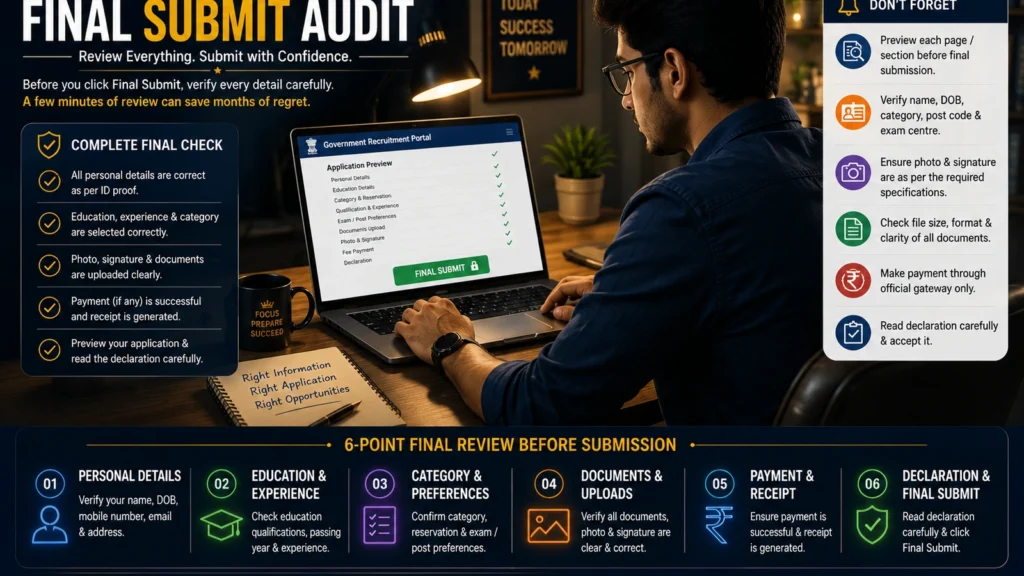
21. The 20-Point Final Submit Audit
Do this before clicking Final Submit.
PROCESS
01
Advertisement number
Correct recruitment?
02
Post / post code
Correct position?
03
Region / zone / department
Correct selection?
04
Name
Matches required foundational record?
05
Date of birth
Correct?
06
Father / mother name
Correct spelling?
07
Category
Correct legal category?
08
OBC-NCL / EWS status
Correct certificate/status?
09
Age relaxation
Actually eligible?
10
Qualification
Correct degree/trade/subject?
11
Passing date
Eligible by crucial date?
12
Marks / CGPA
Entered correctly?
13
Experience
Dates and duration accurate?
14
PwBD / ESM claim
Correct and provable?
15
Preferences
Correct order?
16
Exam centre
Correct choices?
17
Photo / live photo
Correct current rule?
18
Signature / uploads
Clear and correct?
19
Fee / exemption
Correct status?
20
Mobile / email / declaration
Active, accurate and accepted?
Then preview again
Do not treat the 20-point audit as a substitute for the portal preview.
Open every preview section and compare it with your worksheet.
22. Read the Declaration Before You Accept It
The declaration is not decorative.
It usually confirms that:
- information is correct;
- you meet conditions;
- documents/claims are genuine;
- false information can affect candidature.
If you spot an error before final submit, fix it first.
23. Final Submit: Know When the Form Becomes Locked
Different portals use different stages such as:
- Save;
- Continue;
- Preview;
- Lock;
- Final Submit;
- Confirm;
- Submit Application.
Read the warning before the irreversible step.
Do not click Final Submit merely to “see what happens next.”
24. How Do You Know the Application Was Successfully Submitted?
Look for positive proof.
Possible proof includes:
- final success message;
- application/registration number;
- status showing Submitted/Completed;
- downloadable final application;
- confirmation email/SMS;
- payment status where applicable.
UPSC’s historical/current FAQ material gives a useful principle: a blank or zero registration number can mean the application was not successfully submitted, and candidates are advised to retain a printout of the submitted form and payment proof.
Candidate rule
> If you cannot prove submission, do not assume submission.
25. Save Your Application Evidence Folder
Create a folder named:
`Recruiter – Advertisement No – Post`
Save:
- notification PDF;
- corrigenda;
- submitted application PDF;
- application/registration number;
- payment receipt;
- payment transaction reference;
- final submission screenshot;
- photo/signature files used;
- category certificate used;
- qualification proof;
- correction receipt/revised application;
- official helpdesk correspondence.
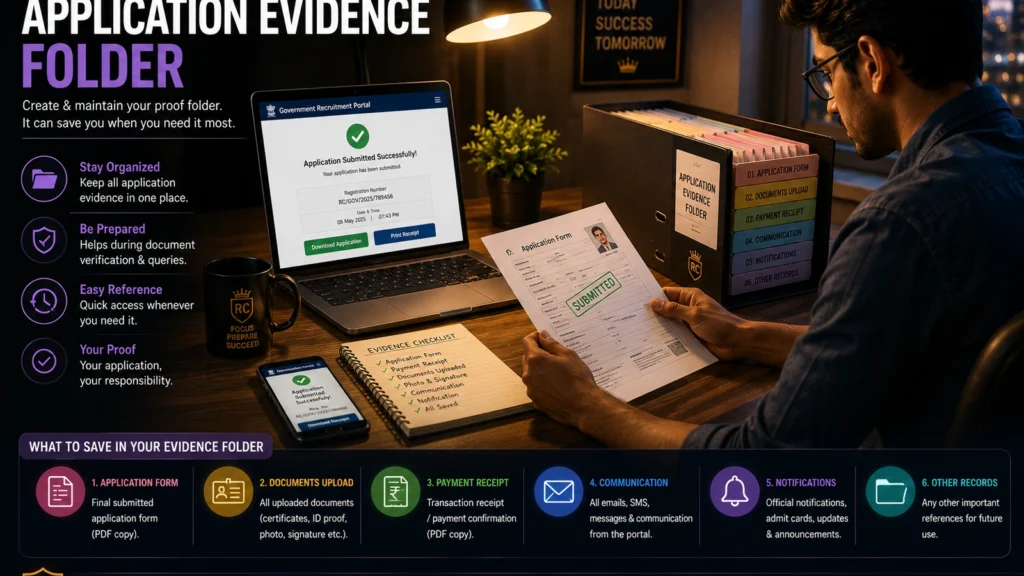
This folder becomes valuable later for:
- admit card problems;
- correction disputes;
- DV;
- category verification;
- application-status queries.
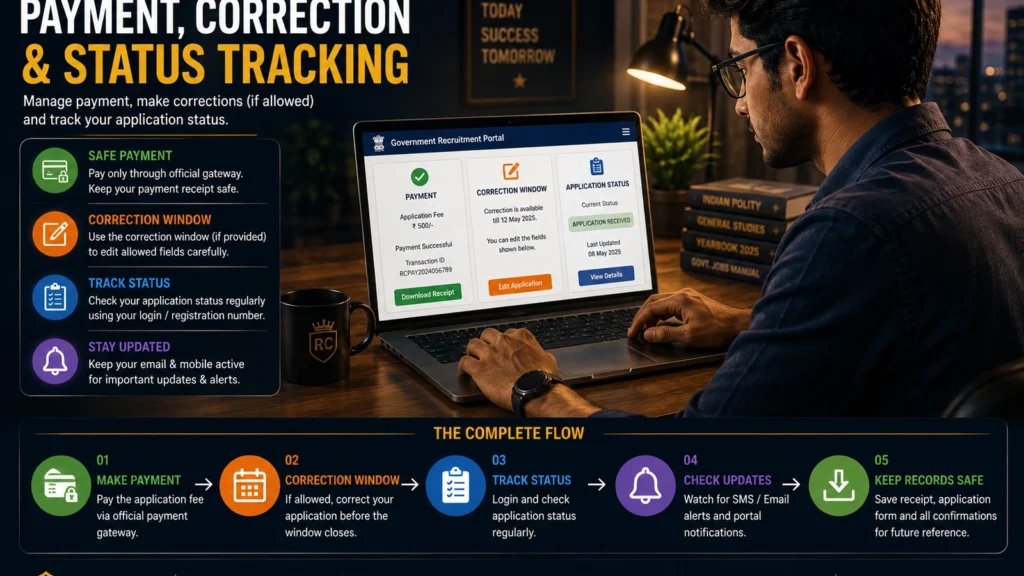
26. Correction Window: What Should You Do?
Some recruiters open a formal correction window after submission.
SSC’s current 2026 notices explicitly state that correction requests after the notified correction window expires will not be entertained.
UPSC’s application FAQs also direct candidates to the notified correction window when applicable.
If a correction window exists
- re-run the 20-point audit;
- identify the exact error;
- check whether that field is editable;
- make the correction;
- final-submit/lock again if required;
- download the revised application.
Do not wait until admit card or DV to correct something that the portal currently allows you to fix.
27. What If the Field Cannot Be Corrected?
Do not invent a workaround.
Use:
- notification instructions;
- official correction rules;
- recruiter helpdesk;
- official grievance channel.
Whether a field can be corrected depends on the recruitment.
A second application can make things worse where duplicates are prohibited.
28. Duplicate Applications and Multiple Accounts
Never assume that submitting another form is harmless.
RRB’s CEN 01/2026 FAQ specifically says candidates should not submit multiple applications to the same RRB or more than one RRB for that CEN; doing so can result in rejection of all applications and debarment under those rules.
UPSC’s older OTR system also warned against multiple OTR IDs, while the current UPSC portal has its newer registration architecture.
The principle is:
> Read the current recruiter’s duplicate-account/application rule before creating anything twice.
29. Do Not Wait for the Last Hour
Servers can slow down near deadlines.
UPSC’s application guidance has advised candidates not to wait until the last day/hours because access depends on traffic and internet conditions.
Applying earlier gives you time to solve:
- OTP problems;
- photo capture;
- payment status;
- document upload;
- browser issues;
- correction.
30. Desktop vs Mobile: Follow the Portal Advice
Do not assume every government form is mobile-friendly.
RRB’s current CEN 01/2026 FAQ advises Desktop/Laptop because some application-module features may not work properly on mobile.
A recruiter can provide different advice.
If the portal is complex, prefer a stable desktop/laptop, updated browser and reliable connection.
31. Cyber Café: Safe Use Checklist
A cyber café can help—but you should remain in control.
Do not allow the operator to decide:
- your category;
- age relaxation;
- qualification;
- preferences;
- declaration.
Before leaving
- verify final preview yourself;
- confirm submission status;
- collect application PDF;
- collect payment proof;
- log out;
- ensure password is not saved in browser;
- remove downloaded personal documents where practical;
- change password if you exposed it unnecessarily.
32. Common Application Mistakes
Mistake 1: Applying before reading the notification
The form cannot explain every rule.
Mistake 2: Thinking registration means application submitted
It does not.
Mistake 3: Selecting category for fee benefit
Category must be legally provable.
Mistake 4: Entering the wrong passing date
Eligibility can depend on the crucial date.
Mistake 5: Using last year’s photo rules
Current recruiter rules control.
Mistake 6: Choosing the wrong post code
One recruitment can contain many posts.
Mistake 7: Guessing experience duration
Experience may be checked later.
Mistake 8: Ignoring preview
The preview is your last easy audit opportunity.
Mistake 9: Assuming payment debit means submission
Check portal status.
Mistake 10: Creating a duplicate account/application
Some recruitments penalize duplicates.
Mistake 11: Missing correction window
After closure, changes may be refused.
Mistake 12: Not saving the submitted form
You may need it months later.
33. What Happens After You Apply?
Possible next stages include:
- application scrutiny;
- correction;
- application-status update;
- exam-city intimation;
- admit card;
- CBT/written exam;
- answer key;
- result;
- next selection stage.
For the full lifecycle, see the Government Job Selection Process guide.
34. Application Rejected: What Should You Check?
Possible reasons can include:
- ineligibility;
- incomplete application;
- duplicate application where prohibited;
- invalid photo/signature;
- unpaid fee;
- wrong category/document;
- missing mandatory field;
- failure to meet notification conditions.
Do not assume the reason until you check the official application-status/rejection notice.
35. If the Portal Is Down Near the Deadline
Use the recruiter’s official notices/helpdesk.
Keep:
- screenshots with date/time;
- error message;
- registration/application number;
- payment reference.
But do not assume the deadline will automatically extend.
Only an official notice can extend it.
36. The Candidate-Safe Application Workflow
PROCESS
01
Find official recruitment
Verify recruiter and advertisement.
02
Save notification
Read full eligibility and application instructions.
03
Confirm eligibility
Age, qualification, category, experience.
04
Build worksheet
Prepare exact details before login.
05
Create/use official account
Follow the current recruiter system.
06
Select correct application
Advertisement, post, region, code.
07
Fill from records
Personal, category, qualification, experience.
08
Set preferences
Post/zone/centre as required.
09
Complete photo/signature/uploads
Use current instructions.
10
Pay or confirm exemption
Check portal status.
11
Run 20-point audit
Compare form against worksheet.
12
Read declaration
Correct errors before locking.
13
Final submit
Complete every required stage.
14
Verify submission
Status, number, PDF, email/SMS.
15
Save evidence
Application + payment + notification.
16
Watch correction/status
Fix allowed errors within notified window.
Frequently Asked Questions
FAQ
How do I apply for a government job online?
Open the official recruitment notification, confirm eligibility, use the official application portal, complete the required account/registration, fill the application accurately, follow current upload/payment instructions, preview carefully, final-submit and save proof of successful submission.
Is OTR the same as a government job application?
No. Reusable registration/profile systems simplify future applications, but you still need to apply to the specific examination/recruitment. UPSC’s current portal uses a newer Universal Registration workflow for current/future examination applications.
What is the official UPSC application website now?
UPSC’s current instructions direct examination applicants to its official online application portal at upsconline.nic.in. Always verify through the current UPSC website/notification because portal systems can change.
Does SSC use live photo in online applications?
Current SSC recruitments can use live photograph capture. Follow the exact current SSC notice rather than an old upload tutorial.
Can I apply for Railway recruitment from my mobile?
RRB’s CEN 01/2026 FAQ advises using a Desktop/Laptop because some application features may not work properly on mobile.
Should my name match my Class 10 certificate?
Follow the recruiter’s exact foundational-record instruction. Many recruitments use matriculation/Class 10 details for identity/DOB verification, so discrepancies should be resolved rather than ignored.
Can I select OBC if I have a State OBC certificate?
It depends on the recruitment. Central OBC reservation can require Central-list and NCL conditions. Check the notification and reservation rules before selecting the category.
Can I claim EWS without the current required certificate?
Only claim EWS if you meet the recruitment’s EWS conditions and can produce the required Income & Asset Certificate under its date/format rules.
What passing date should I enter?
Enter the date defined/accepted by the recruiter and make sure the qualification was acquired by the crucial date. Do not simply use the printed degree-certificate date if it does not represent the relevant result/pass date.
Should I upload all my certificates?
Only upload what the current application asks for. Many recruitments verify additional originals later during DV.
What if my application fee is debited but status is unpaid?
Check the official portal status, preserve the transaction reference, follow recruiter payment-reconciliation instructions and contact the official helpdesk if required. A bank debit alone does not prove a completed application.
How do I know my application is submitted?
Look for the final success/status page, application/registration number, downloadable submitted form and any official confirmation email/SMS. Save these records.
Can I edit the form after final submit?
Only if the recruiter’s rules allow it, often through a notified correction window. After that window closes, changes may be refused.
Can I submit another form if I made a mistake?
Do not do so until you check the recruiter’s duplicate-application rules. Some RRB recruitments explicitly reject multiple applications.
Should I wait until the last date to apply?
No. Portal traffic, OTP, upload and payment issues can take time. Apply early enough to troubleshoot.
Is a cyber café safe for government applications?
It can be used, but you should personally verify eligibility fields, category, preferences, uploads and final preview. Collect the submitted form and log out before leaving.
What should I save after submitting?
Save the notification, application PDF, registration/application number, payment proof, submitted-photo/signature files, category/qualification documents used, correction receipt and relevant helpdesk correspondence.
What happens after online application?
The recruiter may scrutinize applications, open a correction/status window, issue exam-city/admit-card information and proceed to the examination or next selection stage.
Can Regal Career submit the form for me?
Regal Career provides guidance and recruitment information. The candidate should complete the application through the official recruiting authority/application portal under the notification’s rules.
OFFICIAL SOURCE
Always use the current official recruitment notification and application portal as your controlling source. Useful official examples include:
- Staff Selection Commission official website
- SSC Selection Post Phase XIV/2026 notice — current live-photo/correction and application instructions
- UPSC current online application portal
- UPSC General Instructions for current online forms / Universal Registration
- UPSC Examination Branch FAQs
- RRB CEN 01/2026 Application FAQs
- RRB Ajmer general online-application guidelines
- National Career Service fraud warning for job seekers
FINAL TAKEAWAY
The safest way to apply for government jobs online is to treat the form as the first stage of document verification. Every important field should come from a rule or record you can later defend. Start with the official notification, use the current official portal, understand that registration is not the same as a submitted application, enter the exact post/category/qualification details, follow current upload and payment rules, and audit the entire preview before Final Submit. Then save proof that the correct application was actually submitted. A few extra minutes before clicking Final Submit can prevent months of avoidable recruitment problems.
